
Introduction
Panels provide additional content areas outside of the main page content where your sections are displayed. These areas can be used for sidebars, reusable content, or layout enhancements.
Panel locations may include:
- Left and right side panels
- Middle panels
- Lower panels
- Bottom panels
Panels are managed under Design → Panels.
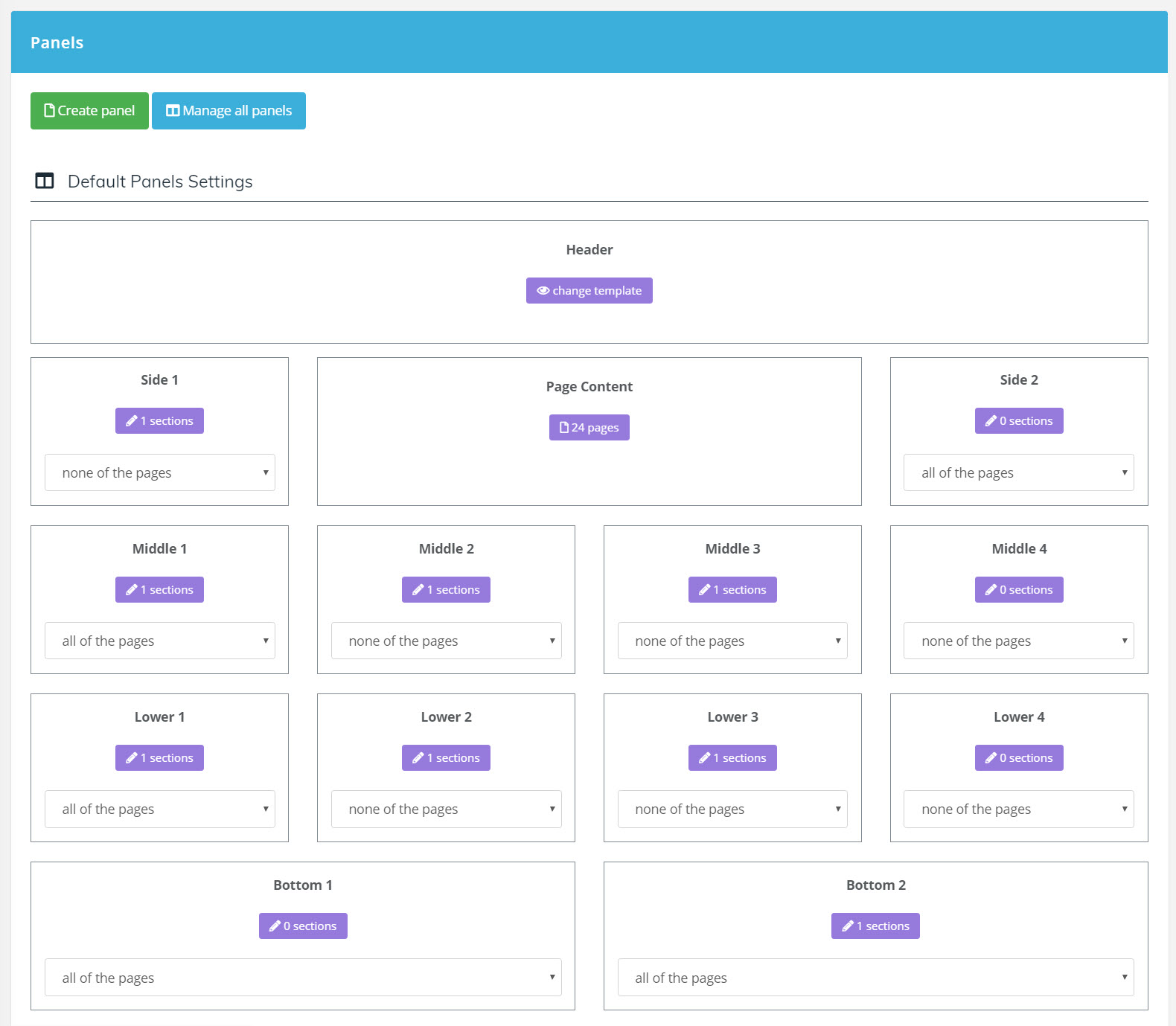
Panel Display Options
Panels can be configured to display on:
- All pages
- All pages except the home page
- Only the home page
- No pages
This allows you to control where shared content appears across your website.
Example
You can view an example of how panels appear on a website here:
Custom Panels and Page-Specific Settings
You can create custom panels for individual pages or groups of pages using the Create Panel option.
To assign or override panels for a specific page:
- Go to Media → Pages
- Open Page Properties
- Modify the Panels section
Here you can:
- Select custom panels for the page
- Override default panel settings configured under Design → Panels
Tip: Use panels for reusable content such as navigation, announcements, or contact information that should appear across multiple pages.