
To edit an existing page on your website, go to Media → Pages and click Edit next to the desired page.
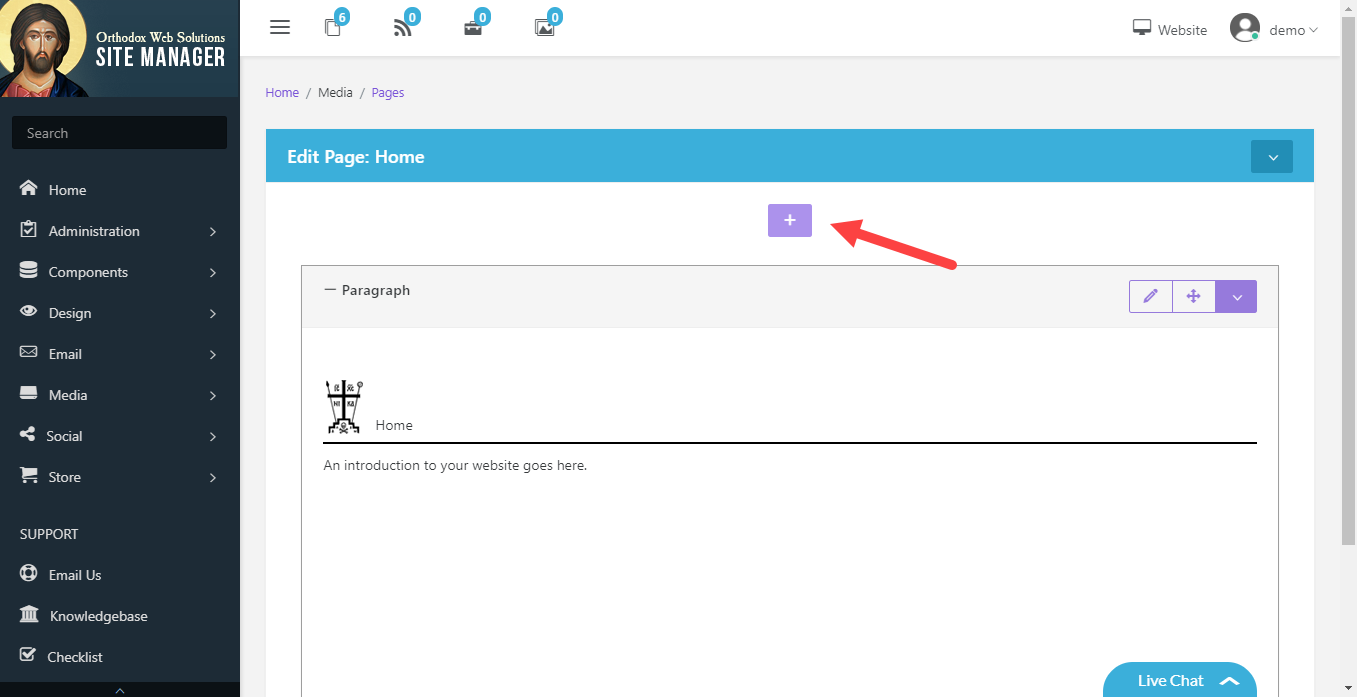
Once inside the editor, you can modify existing sections or add new ones.
Adding or Editing Sections
- Click on an existing section to edit its content
- Click the "+" button to add a new section
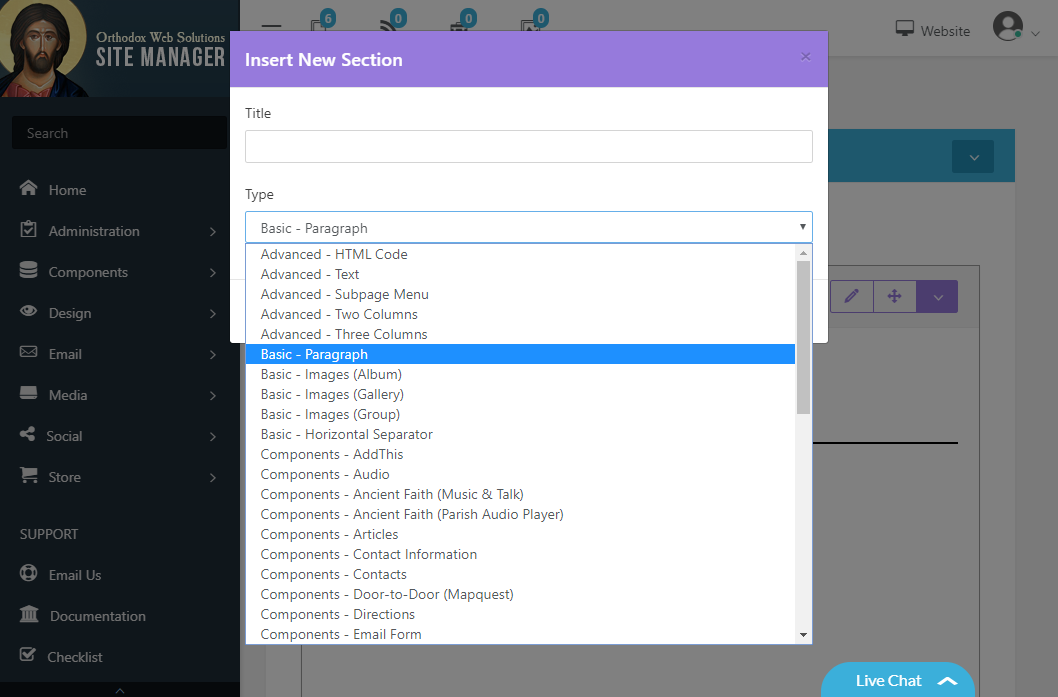
When adding a section:
- Enter a title (optional, depending on section type)
- Select the type of section you would like to insert
- Click Create Section
Understanding Page Layout
Your page is made up of two main content areas:
- Sections (Main Content Area): These are the primary content blocks that make up your page. All sections are added and edited within the page editor.
- Panels (Outside the Main Content): These are additional content areas such as sidebars, middle, lower, or bottom sections that can appear across multiple pages.
Working with Columns
Columns are used to organize content within the main page area.
- Use One Column, Two Columns, or Three Columns layouts to structure your content
- Columns allow you to place sections side-by-side
- You can insert sections inside each column
Tip: Use columns to create layouts such as text beside images or multiple content blocks in a row.
Working with Panels
Panels provide additional content areas outside of the main page content.
- Common panel locations include left sidebar, right sidebar, middle, lower, and bottom areas
- Panels can be displayed across all pages or only specific pages
- Panels are managed under Design → Panels
You can also assign or override panels for a specific page under Media → Pages → Page Properties → Panels.
Tip: Use panels for reusable content such as navigation, announcements, or contact information.
Section Types
Site Manager includes a wide range of section types organized into categories:
- Library: Prebuilt content blocks that can be inserted with one click
- Basic: Common content types such as text, images, buttons, and separators
- Advanced: Layout and structural elements such as columns and menus
- Elements: Interactive and styled components like sliders, tabs, and carousels
- Components: Dynamic content such as calendars, forms, maps, news, and media
Note: Available section types may vary depending on your site configuration.
Tips
- Use Content Blocks (Library) to quickly build pages with pre-designed layouts
- Use Basic sections for simple content
- Use Advanced and Elements for more complex layouts and visual features
- Use Publishing settings to control when sections appear on your website